
Where Did My Prompt Engineer Go? How to Pin Custom GPTs Back in ChatGPT
By AI Business Partners · 28 Jun 2026
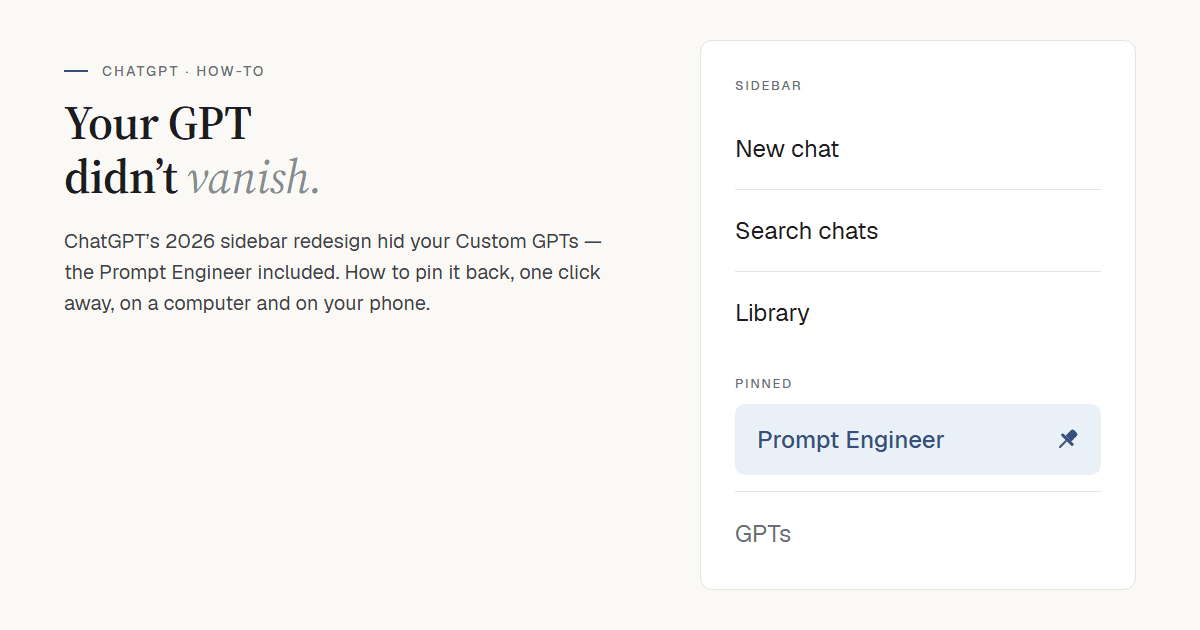
A plain-English guide for busy business owners who use ChatGPT but don't want to live inside it.
We've had a run of calls this week that all start the same way: "Where's my Prompt Engineer gone?"
If you've been using the Prompt Engineer — our Custom GPT for writing better prompts — you may have opened ChatGPT recently and found it missing from the left-hand menu. You haven't lost it, and nothing has been deleted.
ChatGPT redesigned its sidebar in 2026. Custom GPTs that used to sit there on their own now generally need to be pinned by hand. Pin the Prompt Engineer once and it stays put.
One honest caveat before we start: OpenAI hasn't published a clear note explaining this exact change, and it rolls updates out gradually. So the menus on your screen may look slightly different from the steps below, and the behaviour could shift again. Where something isn't officially confirmed, I've said so.
Here's how to get it back and keep it one click away.
The quickest way back: your link
The most dependable way to open the Prompt Engineer — today, and after any future ChatGPT redesign — is its direct link:
Click it on a computer, or tap it on your phone, and the Prompt Engineer opens straight away. Save it as a browser bookmark and it's always one click from your toolbar. This route doesn't rely on any ChatGPT menu, so it keeps working when they move things around — which is exactly why we're putting it first.

Pin it so it stays in your sidebar (on a computer)
Pinning keeps the Prompt Engineer visible in the sidebar so you don't need the link every time. On a desktop or laptop (chatgpt.com):
- Open the Prompt Engineer using its link: https://tinyurl.com/prmt-eng
- At the top-right of the screen, click Pin GPT. If you don't see it there, click the … more-options button in the top-right corner and choose Pin GPT from the menu.
The Prompt Engineer now sits under the Pinned section of the sidebar, alongside any chats or projects you've pinned. From now on it's one click away.
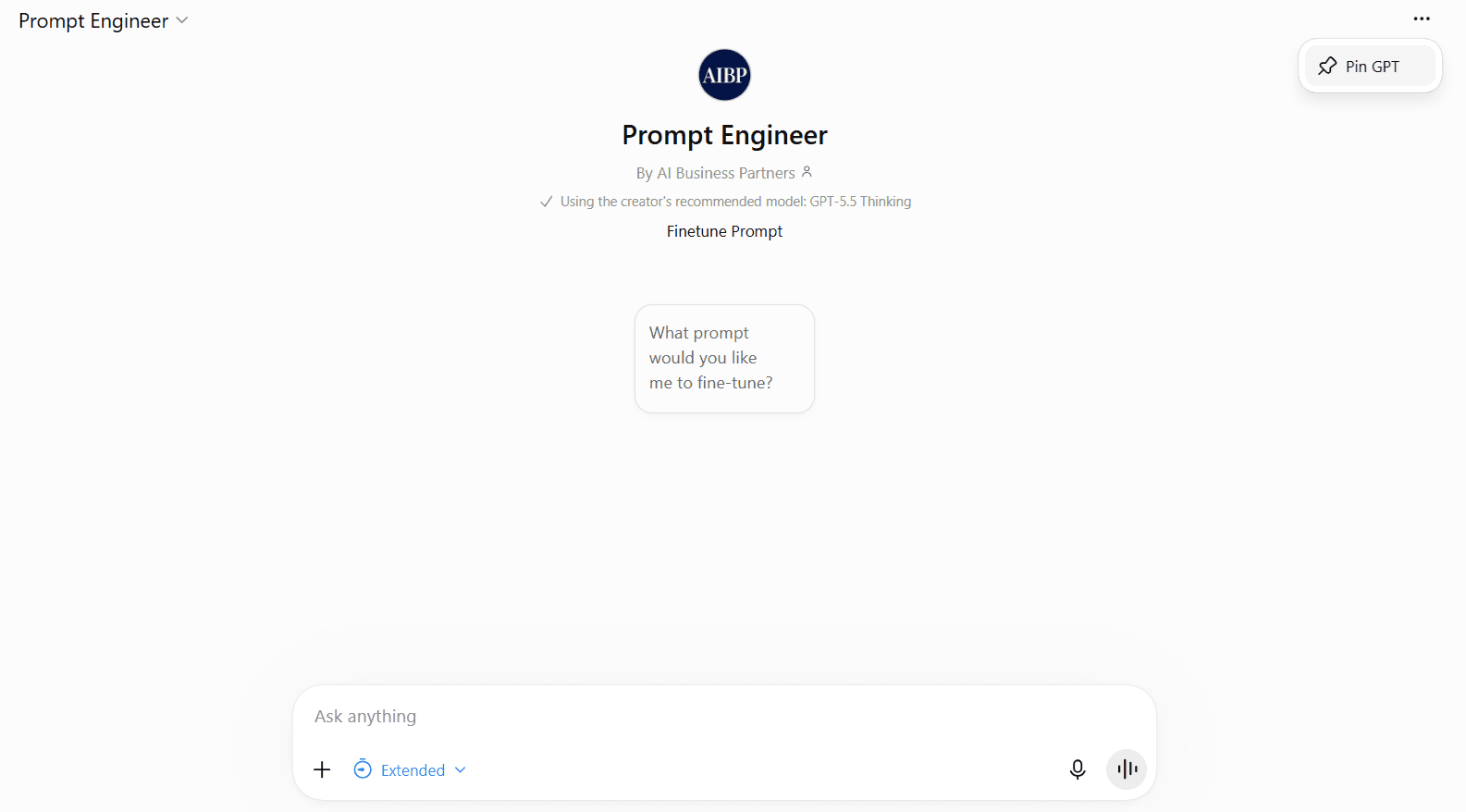
A couple of notes:
- If you've used it before but lost the link, click … More in the sidebar, then GPTs, and look under your recently used GPTs. Open the Prompt Engineer from there and pin it the same way.
- If you build your own GPTs, you'll find those under the My GPTs tab on the same "Explore GPTs" screen. Open one and pin it exactly as above. (Note: My GPTs only lists GPTs you created — the Prompt Engineer won't appear there unless you built your own copy, which is why the link above is the reliable route.)
- On wording: older guides mention a "Keep in sidebar" option. That label looks out of date — on the current version the control is labelled Pin GPT.
Find all our GPTs: search "AI Business Partners"
There's a second dependable route that finds the Prompt Engineer and every other GPT we've published, in one place — useful if you've mislaid the link or want to see what else we've built:
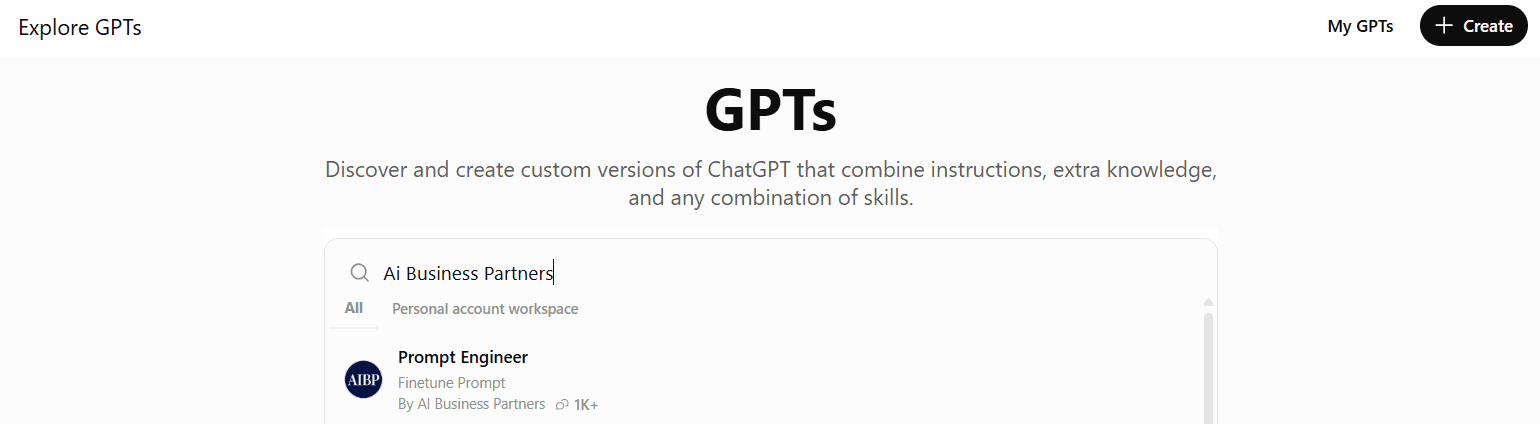
- In the sidebar, click … More, then GPTs to open the Explore GPTs page.
- In the search box near the top, type AI Business Partners.
- The Prompt Engineer appears in the results — look for our round AIBP logo and the line "By AI Business Partners". Our other Custom GPTs are listed here too.
- Click it to open, then pin it using the steps above.
The @ shortcut: handy when it's working
There's also a quicker in-chat trick: type @ in the message box and pick Prompt Engineer from the list. Its one real advantage is that it pulls the Prompt Engineer into your current conversation, so it can see what you've already typed — whereas opening the link or searching starts a fresh chat. For writing prompts, a fresh chat is perfectly fine, so treat @ as a convenience rather than something you depend on.
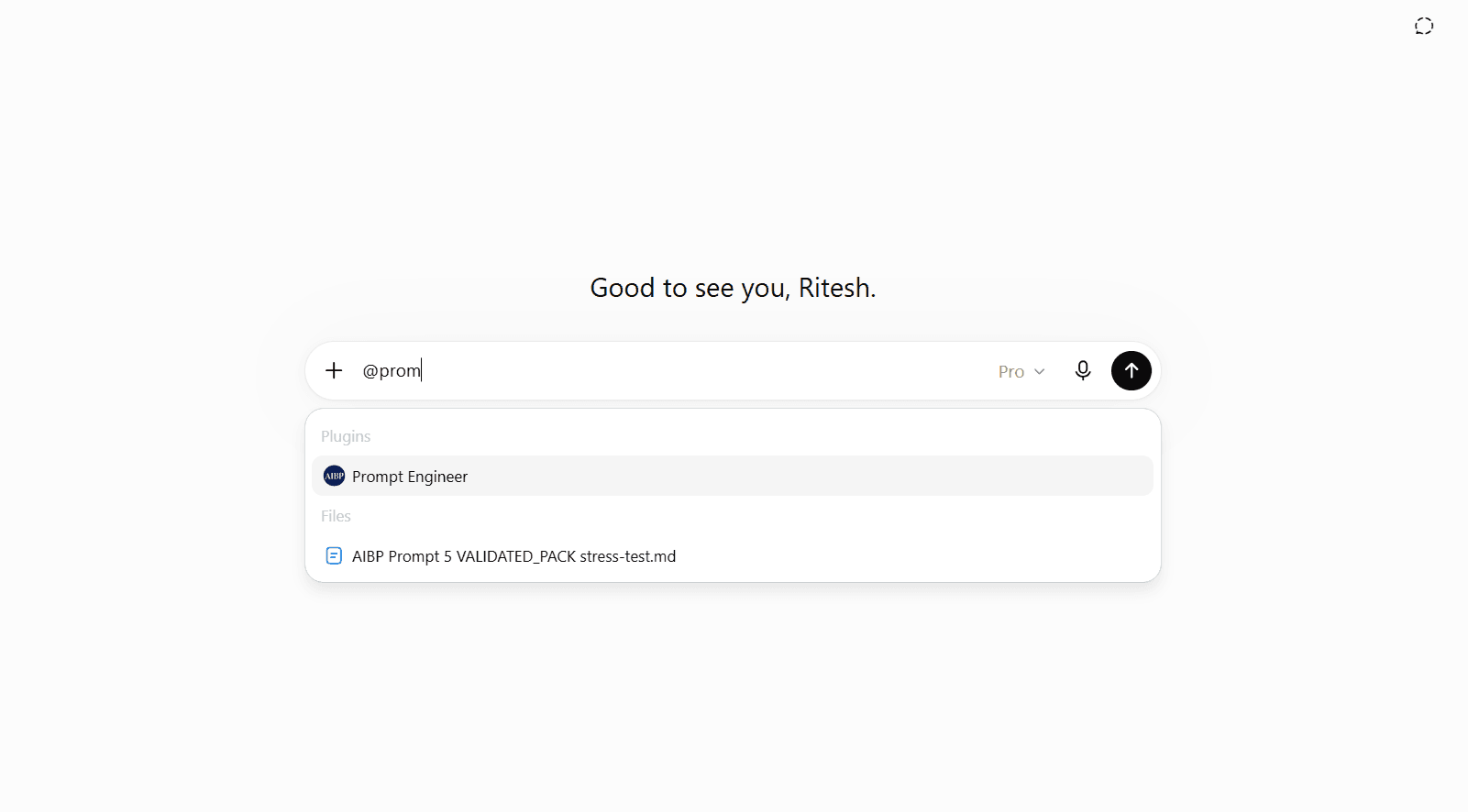
Once it's selected, you'll see the Prompt Engineer badge sitting in your message box — that's how you know it's active:
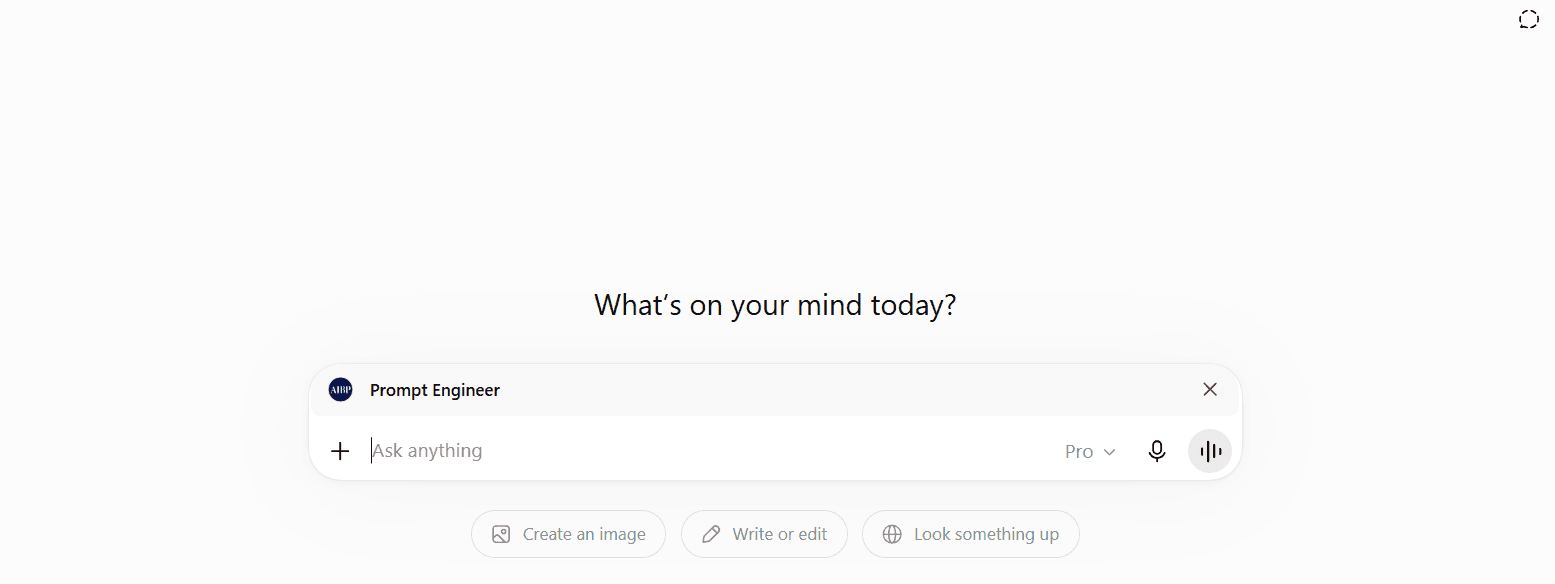
The catch: the @ list is the least reliable of the routes here. It only shows GPTs you've used recently, and OpenAI's interface updates have broken it more than once — most recently in late June 2026, when Custom GPTs disappeared from the @ menu for a couple of days before being fixed. So use @ when it works, and keep the link and the search as your fallbacks. And note this is a desktop trick: on a phone, the @ menu does not bring up Custom GPTs at all — see the phone section below.
On your phone (iPhone and Android)
Three things to know:
- You can use the Prompt Engineer in the app, but you can't build or edit Custom GPTs on a phone — that's a computer-only job.
- The @ shortcut does not work on a phone. Typing @ in the mobile app does not bring up Custom GPTs, so don't rely on it there.
That leaves two ways to open it on a phone — set up at least one:
- Tap the link — https://tinyurl.com/prmt-eng — and bookmark it in your mobile browser. Simplest, and always works.
- Open it from your Pinned list — if you've pinned the Prompt Engineer on your computer (steps above), it appears in the app too, ready to tap.
If you've done neither, there's no way to reach it on the phone — so bookmark the link now.
Does this depend on my plan?
Mostly, no — with one exception.
- Using the Prompt Engineer (or any Custom GPT): available on every plan, including the Free tier.
- Building or editing a Custom GPT: needs a paid plan.
If someone on your team needs to create GPTs, the cheapest route in India is ChatGPT Go at ₹399 a month (and it has been offered free for a year on eligible accounts). ChatGPT Plus is ₹1,999 a month and makes sense only if they need heavier usage and stronger models. Prices include GST and you can pay by UPI.
Pinning itself works the same regardless of plan.
Troubleshooting and FAQ
Where's my Prompt Engineer? It's vanished. It hasn't been deleted. The sidebar was redesigned, so it needs pinning by hand. The quickest ways back: open the link — https://tinyurl.com/prmt-eng — or search AI Business Partners in Explore GPTs. Then pin it using the steps above so it stops disappearing.
My pinned GPTs have disappeared again. Before assuming anything broke, check whether the Pinned section is collapsed — click to expand it and your items usually reappear.
I pinned it but it's not showing. Refresh the page, and check you're looking under Pinned rather than Recents. If it still doesn't show, open it from the link or the AI Business Partners search instead.
I typed @ but the Prompt Engineer isn't in the list. On a computer, the @ list only shows GPTs you've used recently, and ChatGPT updates occasionally break it (it happened in late June 2026, fixed within days). On a phone, @ does not bring up Custom GPTs at all. Don't wait on @ either way — open the Prompt Engineer from the link, or tap it from your Pinned list if you've pinned it.
Can I pin as many GPTs as I like? No — ChatGPT currently caps pinned GPTs at 10. That's plenty for most people, but if you rely on a lot of GPTs, choose your ten most-used. (Pinned chats are a separate, tighter limit — three at a time.)
I can't find "My GPTs". Click … More in the sidebar first — the GPTs option is tucked inside it on the current desktop layout. And remember the Prompt Engineer lives behind its link, not under My GPTs, unless you built your own copy.
Will these steps keep working? Possibly not forever — ChatGPT's menus change often. The most durable routes are the link (https://tinyurl.com/prmt-eng) and the AI Business Partners search, because they don't depend on the sidebar or the @ menu. Treat the pinning steps as today's best route rather than a permanent one.
A two-minute habit that ends the calls
Do these three things now and you won't be hunting for the Prompt Engineer again:
- Bookmark the link: https://tinyurl.com/prmt-eng — the one thing that always works.
- Pin it on your computer using the steps above.
- On a computer, the "AI Business Partners" search and the @ shortcut are handy backups. On a phone, the bookmark or your Pinned list are the only ways in.
If your staff use the Prompt Engineer too, send them this page. Two minutes each saves everyone the "where did it go?" call.
The Prompt Engineer is one of the free AI tools we set up with owners at our workshop — see the full free AI toolkit.
Sources
The step-by-step instructions reflect the live desktop experience (including screenshots from a current account), because OpenAI's own documentation does not currently describe GPT pinning. Plan, pricing and "how to use a GPT" claims are drawn from official OpenAI pages.
- OpenAI Help Center — "Creating and editing GPTs." Confirms that GPTs are available to all users, that creating or editing requires a paid plan, and how to reach Explore GPTs. https://help.openai.com/en/articles/8554397-creating-and-editing-gpts
- OpenAI Help Center — "What is the mentions feature for GPTs?" Confirms you can type @ in a conversation to bring a GPT in without starting a new chat. https://help.openai.com/en/articles/8908924-what-is-the-mentions-feature-for-gpts
- OpenAI Developer Community — "Custom GPTs no longer appear when using '@' after today's interface update" (June 2026). Users report that a 24 June 2026 interface update removed Custom GPTs from the @ menu; OpenAI acknowledged the issue and it was restored on 26 June. Evidence that the @ route is intermittently unreliable. https://community.openai.com/t/custom-gpts-no-longer-appear-when-using-after-today-s-interface-update/1384672
- OpenAI Developer Community — "Customizable Number of Pinned GPTs" (June 2026). A feature request that names 10 as the current default limit on pinned GPTs and asks OpenAI to make it adjustable. Supports the 10-GPT pin cap noted above. https://community.openai.com/t/customizable-number-of-pinned-gpts/1384001
- OpenAI — "Introducing the GPT Store" (10 January 2024). Launch of the GPT Store. https://openai.com/index/introducing-the-gpt-store/
- OpenAI — "Introducing GPT-4o and more tools to ChatGPT free users" (13 May 2024). Custom GPT use extended to Free-tier users. https://openai.com/index/gpt-4o-and-more-tools-to-chatgpt-free/
- Popular AI — "The ChatGPT sidebar sucks now. Here's how to fix it." (3 June 2026). Hands-on report documenting the desktop sidebar redesign and the manual-pin path; the author notes the change is not covered by any official OpenAI release note. https://www.popularai.org/p/chatgpt-sidebar-pinned-chats-gpts-projects-missing
- AIPRM — "How to Work with GPTs." Background on accessing and working with GPTs. https://www.aiprm.com/tutorials/example-use-cases/how-to-work-with-gpts/
- Yahoo / TechRadar — "Finally! ChatGPT now lets you pin chats, but with one big restriction" (December 2025). The three-pinned-chats limit (a separate feature from GPT pinning). https://tech.yahoo.com/ai/chatgpt/articles/finally-chatgpt-now-lets-pin-114911334.html
- AI Toolbox — "How to Pin Chats in ChatGPT: A Step-by-Step Guide (2026)." Secondary reference on chat pinning. https://www.ai-toolbox.co/ai-toolbox-chatgpt-features/how-to-pin-chats-in-chatgpt
- Ease Template — "ChatGPT Go India Launch: Complete Guide to ₹399 Subscription Plan (2025)." India pricing and Go plan details. https://easetemplate.com/chatgpt-go-india-subscription-guide-399-rupees/
Note: ChatGPT's interface changes frequently and may look different from one account to the next, because OpenAI rolls features out gradually. Prices and plan features can change — check chatgpt.com/pricing before quoting figures. Accurate as of late June 2026.
Related articles
Put this to work in your own business
We train 325+ owners across Delhi NCR hands-on, on their own data — in 2 days.