
The Design System Prompt — Build Your Brand's Design System in Claude, Then Use It Everywhere
By AI Business Partners · 25 Sep 2026
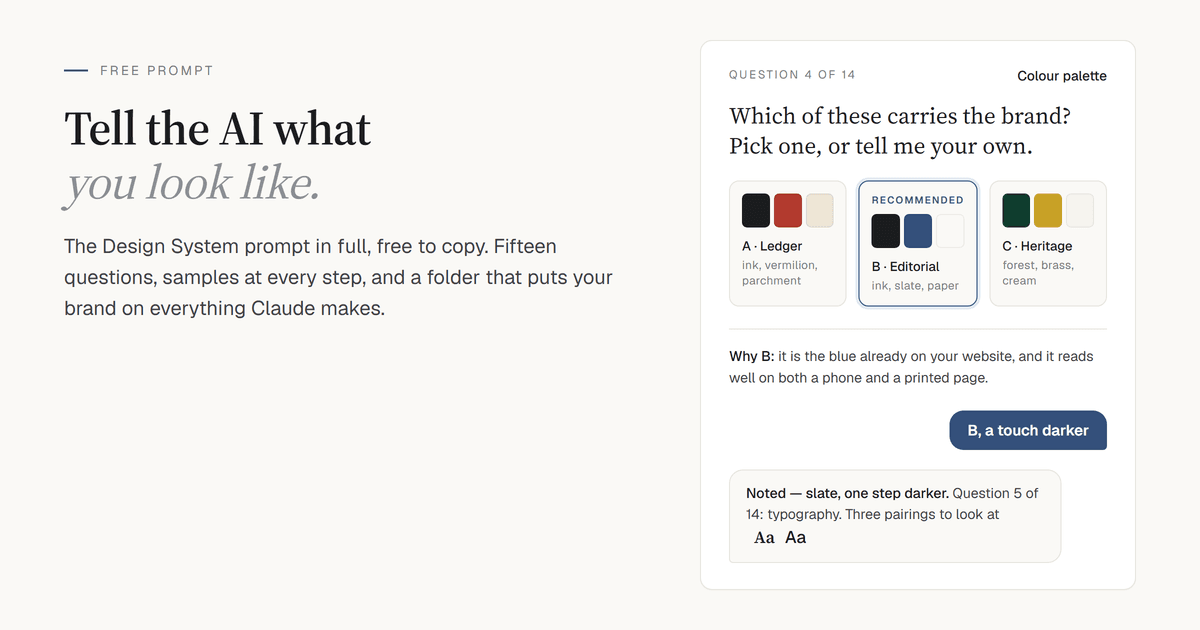
This is a prompt we built and now give away. It is below in full — free, no sign-up, nothing to buy.
For best results: run this prompt in Claude — web or desktop — on Claude Opus 5.5 with thinking effort at maximum and web search switched on. Sections 1 to 3 explain why.
Every SME has a brand, whether or not anyone wrote it down. It is the logo on the letterhead, the blue somebody picked for the website in 2019, the font the printer used on the last brochure. The trouble starts the moment you ask an AI to make something for you — a LinkedIn ad, a one-page brochure, an email to your customers — and it comes back looking like it belongs to a different company. Not because the AI is bad at design, but because nobody told it what your company looks like.
A design system fixes that. It is one folder that says, precisely, what your brand is: the colours with their hex codes, the typefaces, how much space goes around things, what a button and a table and a call-out look like, how the logo may and may not be used. Give that folder to Claude Design and everything it produces for you carries your brand. Give it to Claude Code or Cowork and the emails and documents they draft carry it too.
Agencies charge lakhs for this and take weeks. The prompt below builds it with you in an afternoon — an hour to ninety minutes of conversation, answered in a few words at a time — and it never makes a choice on your behalf.
1. Run it in Claude, on Opus 5.5, with thinking at maximum
Use Claude Opus 5.5. It is the model included in the Pro plan, and this task sits comfortably inside what it does well — a long conversation of design choices, rendered samples and a folder of files that must agree with each other. Fable 5.1 will do it too if your plan includes it, but the headroom goes unused here, and a 15-question conversation with a sample at every step is exactly where Fable's usage cost bites. What you must not use is the default fast model or a lighter variant. Wherever your Claude interface offers a thinking, reasoning or effort setting, set it to the highest option.
Two reasons the model matters more than usual. First, the prompt has to render colour swatches, font specimens and a full sample page for you to judge — that is real work, and lighter models describe a palette instead of showing you one. Second, the final folder is dozens of files that all have to agree with each other: the hex code in the guide has to be the same hex code in the tokens file, the CSS, both templates and every preview card. A weaker model drifts between them and you find out later, when a brochure comes out in the wrong blue.
Run it in Claude rather than ChatGPT. The folder it builds is made for Claude Design, and Claude can hand it back to you as a download at the end. Build it where you will use it.
2. Switch on web search
If you have a website, the prompt's first move is to read it — colours, typefaces, the logo — and put samples based on it in front of you before you have answered anything. That only happens if Claude is allowed to look. Turn web search on before you send the prompt.
If it reports that it cannot read your site, it will say so and ask you to upload the logo and a couple of screenshots instead. That is the prompt working as written, not a failure.
3. Let Claude create files
The last thing the prompt does is write a folder and zip it for you. In Claude's settings, check that the option to create and edit files is switched on. Without it, you get the contents of every file printed into the chat and have to save them by hand, which works but is tedious.
If you already use Claude Cowork or Claude Code, you can run the prompt there instead. The conversation is the same and the folder lands straight on your disk, no zip to unpack.
4. Have your material to hand before you start
The very first question asks what you already have. Get these ready so you can answer in one go:
- Your logo, as an SVG if you have one, otherwise the best PNG you own. If you have neither, the prompt can pull it off your website.
- Your website address.
- Anything printed — a brochure, a proposal, a sample PDF. Whatever your customers already see.
- Any photographs you would want on a brochure — your team, your premises, your products. If you have none, say so; the folder marks the place for them and works without them.
- Your brand name and one line on what you offer.
Anything you do not have, say so. The prompt marks the gap [CLIENT TO SUPPLY] in the files rather than inventing something, and you can drop the real thing in later.
One thing that is different from our other prompts: there is nothing for you to fill in. The only text in red below is [CLIENT TO SUPPLY], and it is a marker the AI writes into the files — not a field you replace. Copy the prompt exactly as it is.
The prompt
Copy all of it. No brackets to fill, no editing.
You are a brand and design-system consultant. The user has no existing design system; you will build one with them from scratch through a guided, step-by-step conversation, then package it as a `_ds/` folder that works both as a Claude Design design system and as a working reference for Claude Code and Claude Cowork.
Your task:

* Open with a single request (this is Question 1), presented as a checklist of options the user tells you which they have and shares, for:
   * the logo — either uploaded by the user or, as an option, extracted by you from the existing website
   * an existing website — the user shares the URL and you read it where the platform allows; if you cannot read it, say so and ask for the logo and screenshots to be uploaded instead, still as part of Question 1
   * any other existing material to use as a starting point, such as:
      * a sample PDF
      * a brochure
   * the brand name and what it offers
* If a logo, website or material is supplied, base your first samples on them (their colours, typefaces, layout) and confirm what you extracted with the user as part of the next question; if none exists, proceed from a blank slate. The user's explicit choices always override anything you infer from supplied sources.
* Then gather every remaining element the final folder requires — brand personality (the impression it should give), colour palette, typography, spacing and layout, components, imagery and iconography style — one decision at a time, until every required choice has been made.

Process rules:

* Ask exactly one question per message and wait for the answer before continuing.
* Number each question with a visible counter (e.g., "Question 4 of 14"); if the plan changes, update the total.
* Keep the total to 10–15 questions, including the opening request; never exceed 18. Plan the sequence up front so every required element fits within that budget, and state the plan in one line before Question 1: the number of questions, then a sample for approval, then the `_ds/` folder.
* Never ask a question without showing options. Every question presents concrete choices the user picks from, plus room for their own answer:
   * visual samples for anything visual — colour swatches, font specimens, spacing and density examples, component styles, imagery and icon directions
   * labelled choices for everything else (e.g., personality directions, sources the user can share)
* Render samples visually where the platform allows; otherwise identify them precisely (typeface names, hex codes) and describe them.
* For every design choice, recommend one option with a one-line reason; the user still makes the final call. If the user defers to your recommendation, treat that as their choice.
* Before building the folder, present one sample of the complete design as a single self-contained HTML page showing all chosen elements together (logo, colours, typography, spacing, components, imagery and icon treatment) and ask whether the user likes all of it.
* If anything falls short, revise and re-present; repeat until the user approves everything. These review rounds are unnumbered and sit outside the question budget.
* Build `_ds/` only after that full approval.

Final deliverable — the `_ds/` folder:

* Purpose: uploadable as-is to Claude Design, which extracts colour palette, typography, components and layout patterns from brand assets such as logos, palette files, typography specimens, decks and documents, and loadable by Claude Code or Cowork to generate HTML emails, brochures and similar collateral.
* Contents:
   * `DESIGN.md` — the design-system guide, the file Claude Design expands into a full system when uploaded under Add assets, covering: brand overview and personality; logo usage (variants, clear space, minimum size, misuse); colour palette with roles, hex/RGB values and approved text-on-background pairs; typography (families, weights, scale, fallback stacks); spacing and layout (scale, grid, page structures); components (buttons, cards, tables, dividers, call-outs); imagery and iconography style; channel rules for HTML email and print; dos and don'ts.
   * `README.md` — folder index; how to upload to Claude Design, either as assets in the standalone design-system setup or by asking Claude in a chat to build a design system from the uploaded folder; and how to install the folder as a skill in Claude Code or Cowork under the slug used in `SKILL.md`.
   * `SKILL.md` — YAML frontmatter with `name` (lowercase hyphenated slug, e.g., `acme-design-system`) and `description`, plus instructions for applying the system when generating emails, brochures and other collateral, referencing the other files by relative path.
   * `tokens/design.tokens.json` — every colour, typography, spacing and radius token used in `DESIGN.md`, in W3C DTCG format with `$value`/`$type` keys, the format Claude Design itself uses when exporting tokens; `tokens/tokens.css` — CSS custom properties generated from it.
   * `assets/logo/` — SVG and PNG in primary, reversed and monochrome variants, from the uploaded file or the version extracted from the website; if only a raster version could be extracted, keep it and mark the vector master `[CLIENT TO SUPPLY]`; if no logo exists at all, use `[CLIENT TO SUPPLY]` placeholders. `assets/fonts/` — licensed font files if supplied, otherwise Google Fonts links (Claude Design substitutes Google Fonts when a brand font is proprietary), each with an email-safe fallback stack.
   * `preview/` — one self-contained HTML card each for brand, colours, typography, spacing and components; Claude Design's Design System pane builds its card index from each preview HTML's first-line `<!-- @dsCard group="…" -->` comment, so every card starts with one, named for its section.
   * `templates/email.html` — table-based layout, inline CSS, 600 px maximum width, fallback fonts; `templates/brochure.html` — A4, print-ready, with cover and inner-page layouts.
   * `examples/approved-sample.html` — the sample the user approved, unchanged.
* Packaging:
   * Self-contained: relative paths only; no dependency outside the folder except Google Fonts links.
   * Every value in every file derives from the approved choices; introduce nothing else.
   * Before delivering, verify that every relative path resolves and that token values match `DESIGN.md` and the templates exactly.
   * Deliver as a folder on disk, or as `_ds.zip` where a folder cannot be handed over directly, and show the final folder tree.

Style: conversational and consultative, in plain language — guide, don't lecture.
Ground rules:

* Every choice comes from the user; never assume or fill in preferences on their behalf.
* Where the user cannot supply something (e.g., no logo), mark it `[CLIENT TO SUPPLY]` in the affected files rather than inventing it.
* Use British English throughout.
What happens after you send it
It is a conversation, not a one-shot answer. Four stages; allow an hour to ninety minutes.
Stage one — the plan and Question 1. Before it asks anything, it tells you in one line how many questions it intends to ask, that a sample follows, and that the folder comes last. Then Question 1: a checklist of what you have — logo, website, brochure, photographs, brand name. Tick what you have, attach it with the + (or paperclip) in the message box, and say plainly what you do not have.
Stage two — one decision at a time. Between 10 and 15 questions, each numbered ("Question 4 of 14"), each with concrete options in front of you: colour swatches, font specimens side by side, spacing at two or three densities, a few button styles. If it read your website, the first samples are built from what it found there, and it asks you to confirm what it extracted before it builds on it. Every question comes with one recommendation and one line of reasoning. You can take it or overrule it. Reply "go with your recommendation" and it moves on.
Answer with a choice, not an essay. "Option B, but a touch darker" is a perfect answer. If you find yourself writing three paragraphs, you are doing the AI's job.
Stage three — the sample. Before it writes any files, it shows you one complete page with everything on it: your logo, the palette, headings and body text, a button, a card, a table, the imagery style. Look at it on your phone as well as your laptop — the Claude app shows the same preview. If anything is off, say what, and it re-presents. These revision rounds are not counted against the questions, so take as many as you need. Nothing is built until you say the whole page is right.
Stage four — the folder. It builds _ds/, checks that every file agrees with every other, shows you the folder tree and gives you _ds.zip as a download link in the chat. Click it; the zip lands in your Downloads folder. Move it somewhere permanent straight away — everything below starts from it, and a Downloads folder is where files go to be lost.
A folder built with this prompt for one client came out at fifty-odd files: the guide, the tokens, the logo in three variants as SVG and PNG, thirty icons, a motif drawn from the logo mark, five preview cards, the two templates and the approved sample. Its README.md explained every file and, in two short sections, exactly how to load it into Claude Design and how to install it as a skill. Read that README first — it is written for your folder, and everything below is the general version of what it says.
Getting the folder into Claude Design
Claude Design is where the folder earns its keep: once your design system is loaded, every ad, brochure, deck or one-pager Claude Design produces for you comes out in your brand without being asked.
The whole job is one drag. The folder was built to be uploaded as it is — you do not pick files out of it, you do not open it looking for the guide or the logo, and you do not move anything around. Claude does all of that itself.
First, unzip _ds.zip. On Windows, right-click it and choose Extract All; on a Mac, double-click it. You get a folder called _ds. Leave it exactly as it is. Then five clicks. The three places people go wrong are shown below, with the click marked in red.
- Open Claude Design at claude.ai/design and sign in — the same Claude account you ran the prompt in is simplest. The home screen asks "What should we create?". In the prompt box under it, click the Design system chip. A list of the design systems in your account drops down.
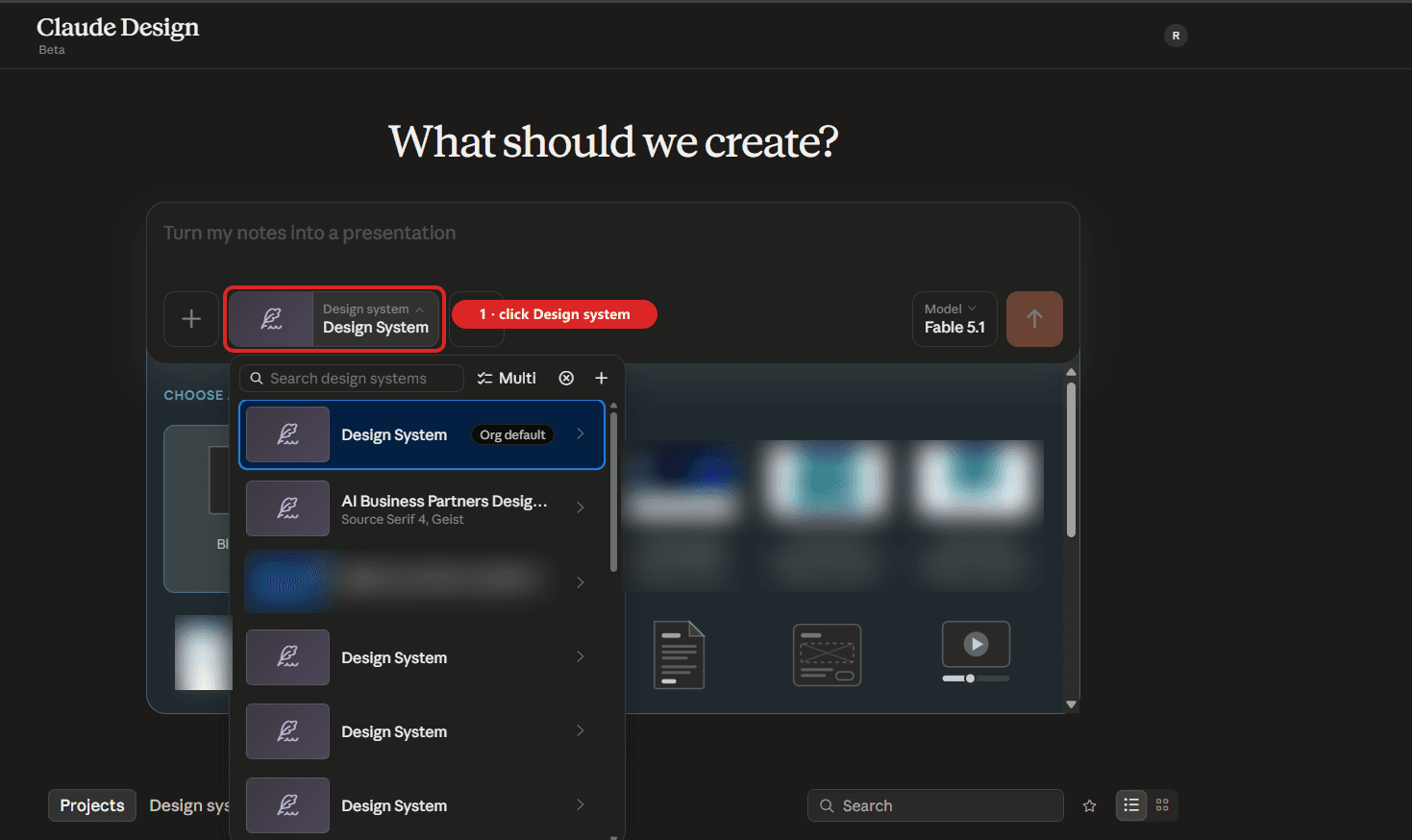
- In that list, click Create design system at the top right. (If the list opened as a small dropdown rather than the full panel, the + at the top of the dropdown does the same job.)
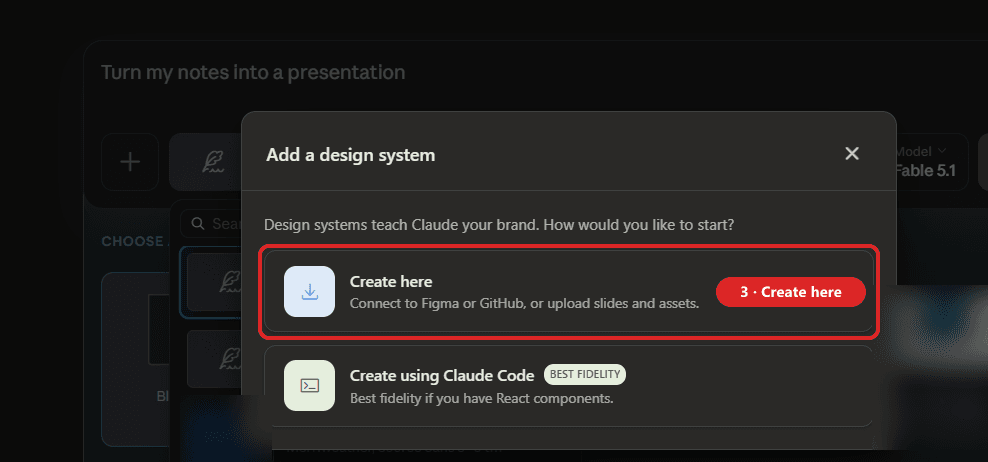
- A dialogue asks "How would you like to start?". Click the first option, Create here. The second, "Create using Claude Code", is for software teams with React components; that is not you.
- The Set up your design system page opens, with Back at the top left and Continue to generation at the top right. In the box headed Company name and blurb, type your company name and one line on what you do — "Acme Kitchens: commercial kitchen equipment for restaurants and hotels across NCR". That is all the typing there is.
- Scroll down past Provide examples of your design system and products (all optional) to its bottom row, Add fonts, logos and assets. Drag the whole unzipped
_dsfolder from your file manager onto the box that says Drag files here or browse. That one drop is the entire upload. Give it a moment to finish before you move on.
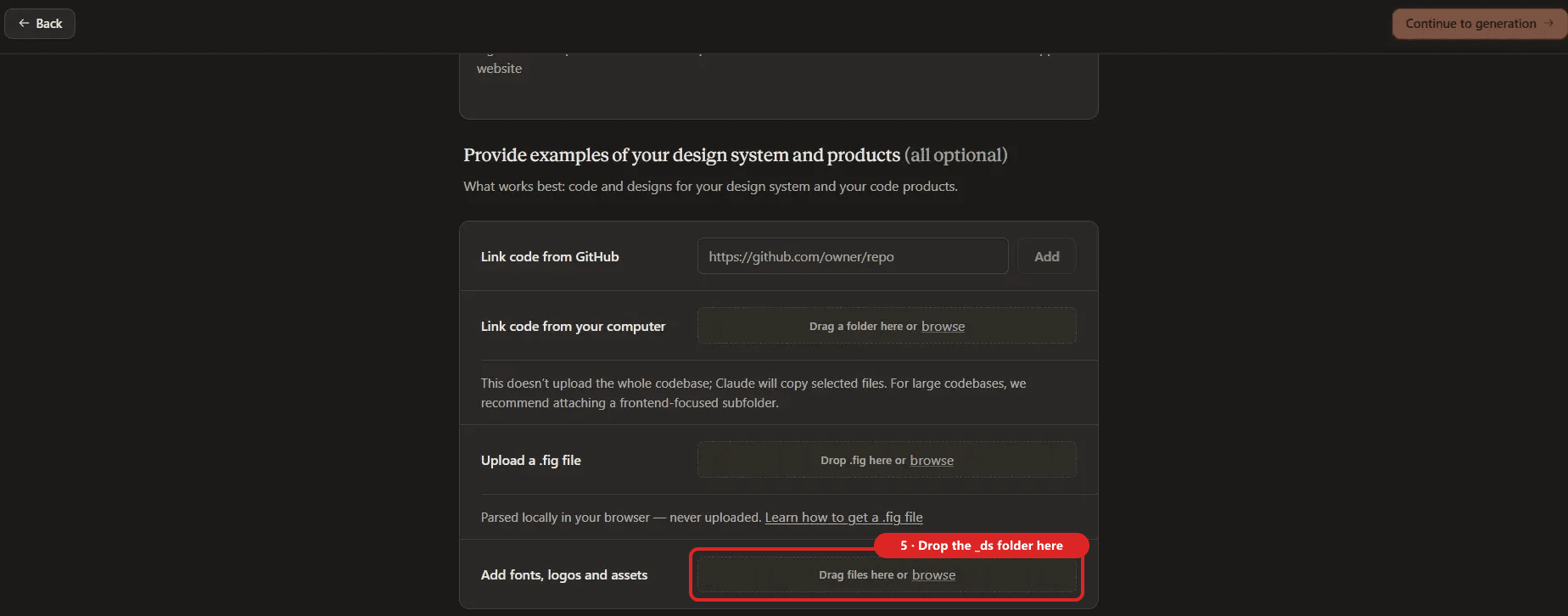
Claude Design then reads the folder on its own: DESIGN.md becomes the full system, the tokens file supplies the exact values, the logo variants come from assets/logo/, and the five cards in preview/ become its Design System pane — each of those files starts with a one-line @dsCard marker put there for exactly this purpose. You do not point it at any of them. Ignore the three rows above the one you used: "Link code from GitHub", "Link code from your computer" and "Upload a .fig file" are for teams that already keep a design system in code or in Figma. Nothing goes there — not even though the second one also says "drag a folder".
- Click Continue to generation and give it a few minutes. What comes back is your design system laid out as cards — brand, colours, typography, spacing, components.
- Read through the cards against
DESIGN.md. A hex code that has drifted, a font that has been swapped: fix it here, in the design system, not in each project later. Fonts are the one thing to expect a substitution on: the prompt uses Google Fonts wherever it can, and where your brand face is proprietary Claude Design swaps in the nearest Google Font and says so. - Test it before you publish it. Make a project and ask for something small — "a LinkedIn ad for our Diwali offer" or "a one-page brochure for our commercial kitchen range" — and check it looks like the sample you approved. Then switch the Published toggle on. From then on, new projects use your design system instead of Claude's default. If the Design system chip on the home screen ever shows a different one, click it and pick yours from the list — that is what the chip is for.
That is the day-to-day from here: open Claude Design, start a project, describe the ad, brochure, deck or one-pager you need, and it arrives in your brand. The design system is applied without being mentioned, so your prompts can be about the offer and the audience rather than the colours.
The folder's README also describes a second route: upload _ds to a Claude chat and ask, "Build a design system from the uploaded _ds folder — use DESIGN.md as the guide and tokens/design.tokens.json for the values." Try it if the design-system screen is not available to you or you would rather stay in the chat.
Wherever the labels on your screen differ from the ones above, follow the screen. Claude Design is updated often and the buttons move; the sequence — name the company, drop the folder, generate, check, publish — does not.
Keeping the folder where every Claude can reach it
Claude Design is one of four places the folder works. The other three — Cowork, Claude Code and Claude chat — need it somewhere they can read it.
On your computer, for Claude Cowork and Claude Code
Save the unzipped folder somewhere you will not lose it — Documents\Brand\_ds on Windows, ~/Brand/_ds on a Mac. That is your master copy. Everything below is a copy of it, so when the brand changes, change the master and copy again.
Both Cowork and Claude Code understand the folder as a skill: a folder with a SKILL.md at the top that tells Claude when to use it and what to read, in what order — the guide, then the tokens, then the template for the channel, then the approved sample as the yardstick. The prompt already wrote that file, and it is the reason the folder works as a skill without any editing. One rule applies to both tools: the folder must be named after the slug in SKILL.md, not _ds. Open SKILL.md, read the name: line — something like acme-design-system — and make a copy of the folder with exactly that name. Nothing inside it changes; only the folder name does.
Claude Cowork:
- Zip the renamed folder — on Windows right-click → Compress to ZIP file (or Send to → Compressed (zipped) folder), on a Mac right-click → Compress — so the zip contains one folder named after the slug.
- In Cowork, open Customize in the left sidebar, then Skills.
- Click +, then Create skill, then Upload a skill, and choose the zip.
- It appears in your skills list with a toggle. Leave it on.
From then on, ask Cowork for "a two-page brochure for the new product, in our design system" and it reads the guide and the brochure template without being told where they are. Cowork can also simply be given the master _ds folder as a working folder for a session, which is the quicker route if you only want a one-off document.
Claude Code:
Copy the renamed folder into the personal skills folder, which follows you across every project:
- Windows:
C:\Users\<you>\.claude\skills\acme-design-system - Mac:
~/.claude/skills/acme-design-system
(use your own slug in place of acme-design-system). If you would rather keep it inside one project only, put it in that project's .claude/skills/ folder instead. Then, in a terminal, check it loaded:
claude plugin validate ~/.claude/skills
Once it is in, you can ask in plain words — "draft the October newsletter" — or call the skill directly by typing / and its slug, for example /acme-design-system.
Claude Code and Cowork skills sync when you are signed in with the same Claude account, so a skill uploaded in Cowork usually appears in Claude Code without the copy — but the copy takes thirty seconds and does not depend on the sync, so do it anyway.
On Google Drive, for Claude chat
Claude chat cannot see your hard disk. If you want to draft an email or a document in an ordinary Claude conversation and have it follow the design system, the folder has to be somewhere Claude chat can read: Google Drive.
- In Google Drive, click New → Folder upload and choose the unzipped
_dsfolder. Keep it in a folder called something obvious — Brand. - In Claude (web or desktop), open Customize → Connectors, find Google Drive and click Connect. Sign in with the Google account that holds the folder and approve the permissions. This needs a paid Claude plan.
- In any chat, click +, choose Add from Google Drive, and pick
DESIGN.md— plustemplates/email.htmlfor an email, ortemplates/brochure.htmlfor a document. Or paste the file's Drive link into the chat. - Better still, make a Project called Brand and add
DESIGN.mdand both templates to its knowledge. Every conversation you start inside that project then knows the design system without you attaching anything.
If the Drive picker will not open a .md file, open DESIGN.md in Notepad or TextEdit, paste the text into a new Google Doc with the same name, and add the Doc instead. The words are what Claude needs; the file extension is not.
The Drive copy does not update itself. When the master folder changes, upload it to Drive again and replace the files in the Brand project, or the emails drafted in chat will quietly follow last month's brand.
Getting your logo into the emails: clasp
Here is the catch that costs people an afternoon. Ask Claude to draft an HTML email in your design system, let it send the email through the Gmail connector, and the email arrives with everything intact except the logo. The connector quietly strips every image out of what it sends — images embedded in the message and images pulled from a web address alike — and rewrites every link through a Google redirect. There is no setting that changes this.
The template in the folder is honest about this. templates/email.html points at the logo by a relative path inside the folder — which works when you open the file on your own machine and nowhere else — and the guide's email rules will most likely tell you to host the logo on a public web address before sending. That works too, but it means a web server, and a mail client that blocks remote images shows a blank box where your logo should be.
The fix that needs neither is to send the email from Google Apps Script — Google's own scripting tool, free with any Google account — with the logo travelling inside the message as an inline image. Gmail, Outlook and phones all show it, remote images blocked or not. Claude Code writes the script for you and swaps the template's relative path for the inline image as it goes; what it needs is a way to push that script into your Google account, and that is clasp, Google's free command-line tool for Apps Script.
Set it up once:
- Install Node.js (version 20 or later) from nodejs.org if you do not have it — take the LTS installer — and open a fresh terminal afterwards so it is on your path.
- Install clasp. In a terminal:
npm install -g @google/clasp
- Switch on the Apps Script API for your Google account. Open https://script.google.com/home/usersettings, signed in as the account that will send the emails — for most businesses that is the
info@address, not a personal one — and turn Google Apps Script API on. - Log in. In the terminal:
clasp login
Your browser opens; sign in with the same Google account and approve. You do this yourself, in your own browser — Claude never sees the password. clasp saves a token in a file called .clasprc.json in your home folder. That file is your Google login for scripts, so never share it, email it, or put it in a folder you sync with anyone.
- Make a folder for the mailer, beside the design system, not inside it —
Documents\Brand\mailernext toDocuments\Brand\_ds. Keeping it outside_dsmeans the script never gets swept up when you drop the folder into Claude Design or Drive.
That is all the setup. From here on Claude Code does the work: open it in the mailer folder and ask it to create the Apps Script project with clasp, write a script that reads ../_ds/templates/email.html, embeds the logo from ../_ds/assets/logo/ as an inline image, and sends a test to you. It writes the code, pushes it to your Google account with clasp, and opens the script in your browser. The first time, you run the test function yourself from the Apps Script editor: pick its name in the dropdown on the toolbar and press Run. Google asks you to authorise Gmail access for the script, once, and the test email lands in your inbox with the logo in it.
Two things worth knowing. Apps Script sends from the account you logged in with, so log in as the address you want customers to see. And a personal Gmail account can send about a hundred emails a day this way, a Google Workspace account many more; for a list larger than that, the script sends in batches across days, which Claude Code can also arrange.
Drafting an HTML email with the design system
With the pieces in place, the day-to-day is short. In Claude Code, from the Brand folder:
Using our design system skill, draft an HTML email announcing our Diwali offer, built on _ds/templates/email.html. Table layout, inline CSS, 600 px wide, the email fallback fonts from the guide, the logo as an inline image, one button. Save it as emails/2026-10-diwali.html and send a test to me with the mailer.
That single message gets you a draft in your brand, on disk, and in your inbox to check on your phone. Read it there — most of your customers will. When it is right, tell Claude Code who it goes to, and it sends through the same script, logo included.
In Claude chat, the drafting half works the same way once DESIGN.md and the email template are attached from Drive: ask for the email, copy the HTML it gives you into a file, and hand that file to Claude Code to send. What you do not do is let chat send it through Gmail — see the section above.
Three habits that keep the emails good:
- Keep the template as the base. The prompt built it table-based with inline styles because that is what email clients tolerate. A "cleaner" layout Claude is tempted into will break in Outlook.
- Name the recipients precisely, and only people who agreed to hear from you. A customer list is personal data under DPDPA 2023, and the responsibility for how it is used sits with you, not with the tool. Every email carries an unsubscribe line — the template has one in its footer — and honour it the same day.
- Send a test every time, even for a two-line change. An inline image that renders in one client and not another is found in thirty seconds by a test and in thirty replies by a send.
If something looks wrong
It asked me three questions in one message. Reply: "one question per message, please." It falls back into line.
It built the folder without showing me the sample. Say: "You skipped the approval sample. Show me the complete design on one page before building anything." Then check the folder it eventually gives you against the sample you approved, not against what it built first.
The samples are described, not shown. You are probably on a lighter model, or file creation and artefacts are off. Check the model first. Swatches and specimens should appear as rendered previews you can look at, not as lists of hex codes.
It invented a colour or a font I never chose. The ground rules forbid it. Say: "That was not one of my choices. Rebuild the file from the approved choices only." If it happens more than once, you are on the wrong model.
There is no zip to download — it printed the files into the chat. File creation is off. Switch it on (section 3), then say: "Package the folder as _ds.zip and give me the download." It rebuilds nothing; it only zips what it already made.
Claude Design generated something that does not match the folder. The cards are built from the preview files and the guide; if a value differs, it usually read a stale or partial copy. Delete the design system, drop the whole _ds folder from your master copy in again — the whole folder, not a selection of files from it — and regenerate.
Claude Design's cards are empty or missing a section. Open the five files in preview/ in a text editor and check that each one begins with a <!-- @dsCard group="…" --> line naming its section. That line is what Claude Design indexes; if the AI dropped it from one file, ask it to add the line back and re-upload.
Cowork refused the skill upload. The folder name and the name: in SKILL.md do not match, or one of them has a capital letter, a space or an underscore. Both must be lowercase words joined by hyphens.
npm is not recognised. Node.js is not installed, or the terminal was open before you installed it. Close the terminal, open a new one and try again.
clasp login does not open a browser. Run it as clasp login --no-localhost instead; it prints a link to open by hand and asks you to paste a code back.
clasp says the Apps Script API is disabled. Step 3 above — the setting is per Google account, and you have to be signed into the right one when you flip it. It can take a minute or two to take effect.
The logo shows in Gmail but not in Outlook. The image is being pulled from a web address rather than embedded. Ask Claude Code to embed it as an inline image (the inlineImages option in Apps Script) rather than linking to it.
One caution before you paste
Everything you upload goes to a third party — your logo, your brochure, your website. For a design system that is fine; it is all material you publish anyway. Keep it to that. Do not drop a proposal with a client's name on it in as a "sample brochure", and keep customer lists out of the design conversation altogether — they belong in the mailer, later, and only for people who opted in.
Building the tools your business actually runs on — prompts, design systems, the plumbing between them — is what we do with owners at our two-day workshop, on your brand, on your numbers, with the output ready to use before you leave the room. Details: Accelerate Your Profits with AI.
Related articles
Put this to work in your own business
We train 325+ owners across Delhi NCR hands-on, on their own data — in 2 days.