
Create an AI Persona of Yourself That Talks in Your Voice
By AI Business Partners · 31 Oct 2026
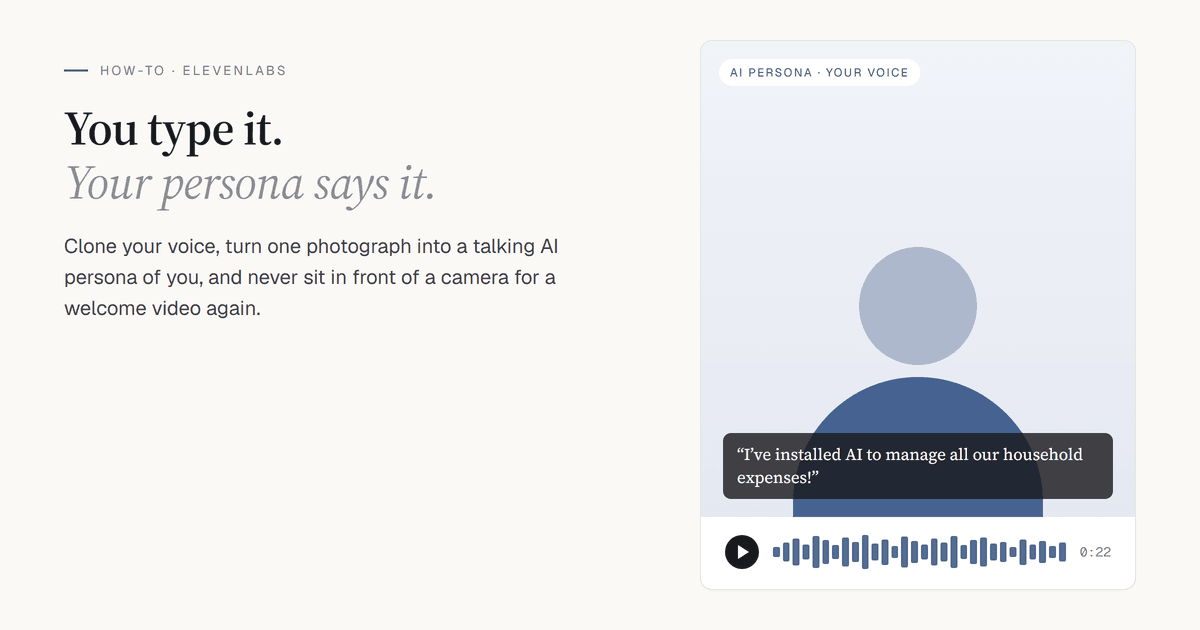
A plain-English guide for business owners who want an AI version of themselves for videos, greetings and announcements.
An AI persona of you is a picture of you that talks, in your own voice, saying whatever you type. Record a welcome message once and you never have to sit in front of a camera for it again. You can update a price, change a date or say it in another language without re-recording.
You build it in two parts, both in ElevenLabs:
- Clone your voice (steps 1 to 8). About ten minutes.
- Create the persona and make it talk (steps 9 to 12). About ten minutes more, mostly waiting.
Do them in this order. The persona speaks with the voice you clone in part one.
Before you start
- A quiet room and a decent microphone. Your laptop's built-in mic works if there is no background noise, fan or echo. What you record is what you get.
- A clear photograph of your face, front-facing, in good light. You need it in part two.
- Your own voice. ElevenLabs asks you to confirm you have the right and consent to clone a voice. Don't clone anyone else's.
- Credits. Part two uses far more credits than part one; see What it costs below and check elevenlabs.io/pricing for which plan you need.
Part one: clone your voice
Step 1: Sign up
Go to elevenlabs.io and create an account, or sign in if you already have one.
Step 2: Open Voice Creation and choose Instant Voice Clone
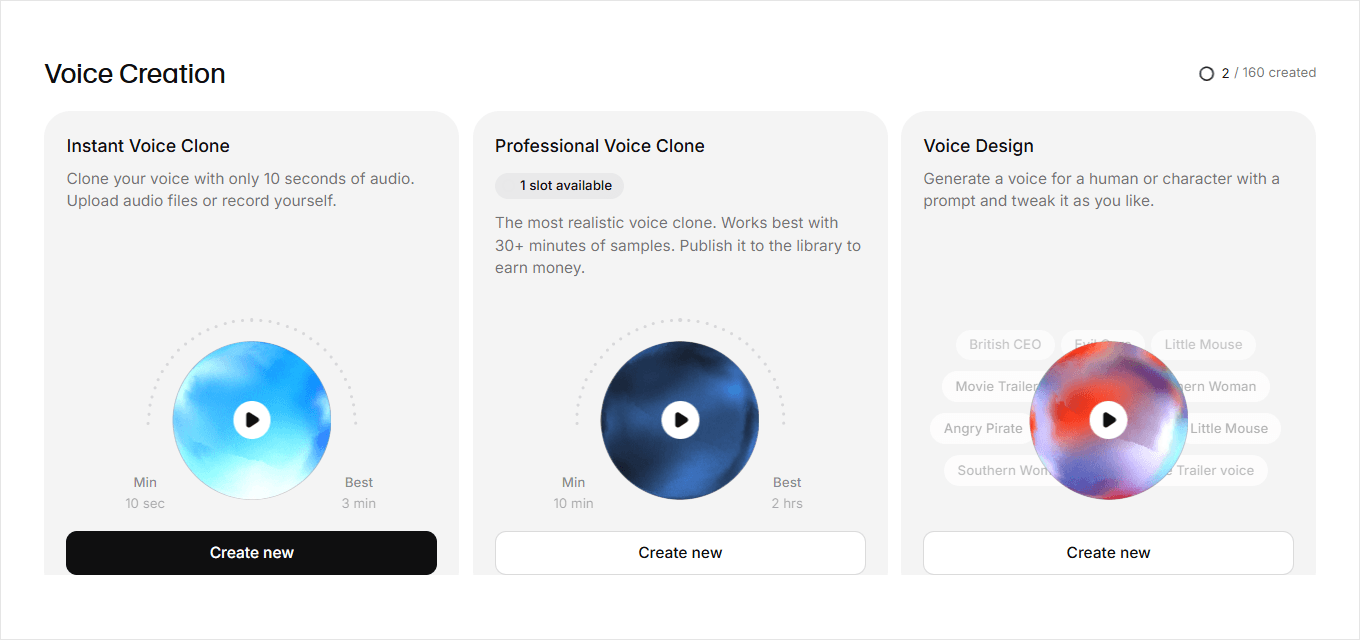
Open https://elevenlabs.io/app/create-voice. Of the three cards, choose Instant Voice Clone and click Create new.
Leave Professional Voice Clone for later: it is the more lifelike option, but it needs at least 10 minutes of recordings and works best with 30 minutes or more.
Step 3: Choose Record audio
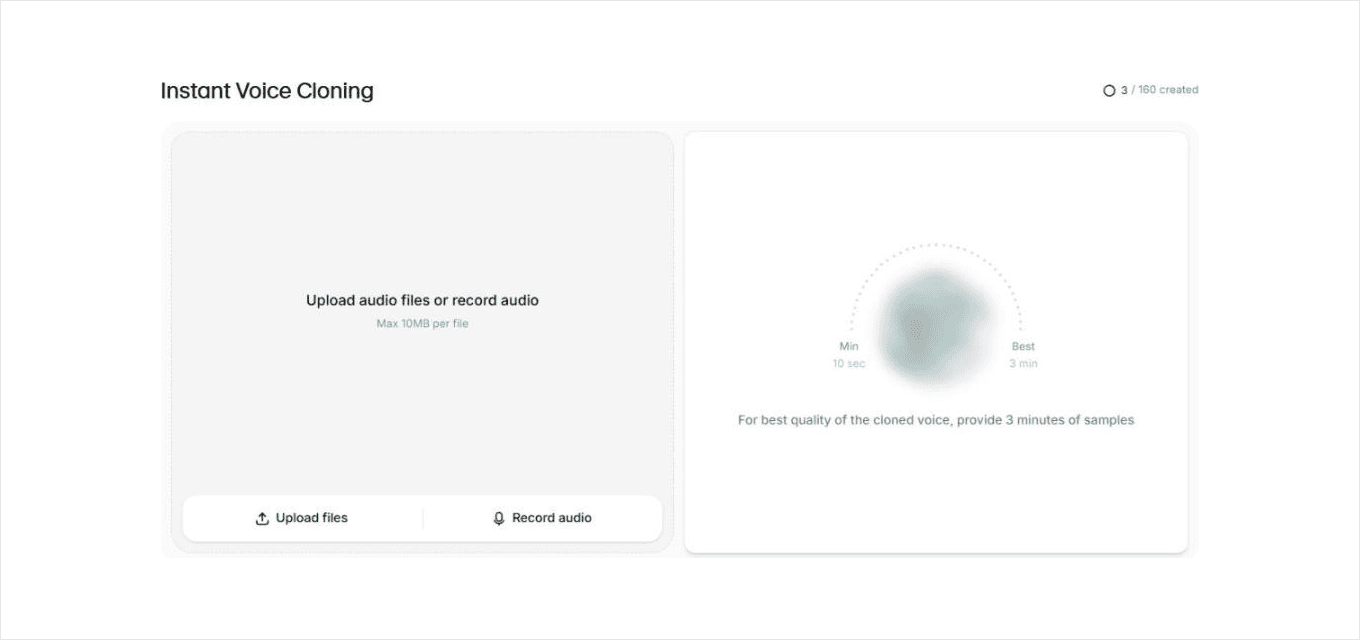
ElevenLabs asks whether you want to upload audio files or record. Click Record audio.
(If you already have a clean recording of yourself, a podcast or a talk, Upload files works too, up to 10 MB per file.)
Step 4: Read the script aloud
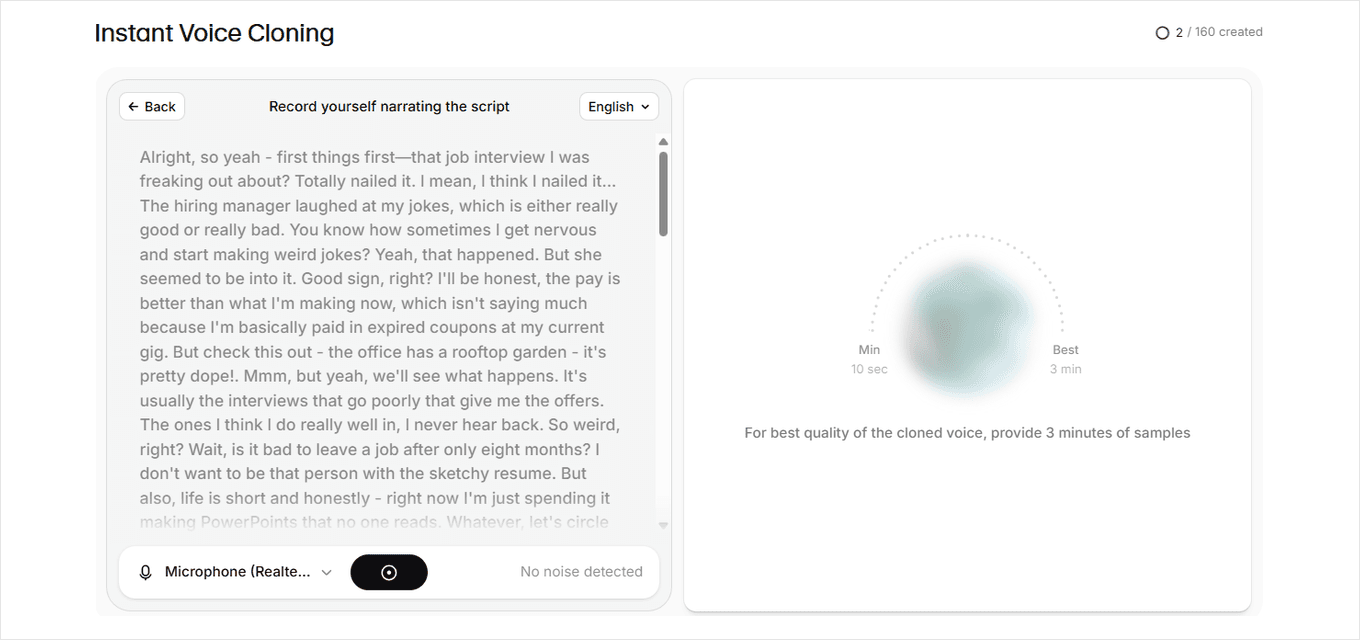
ElevenLabs shows a script to read. Check the right microphone is selected at the bottom left, click the black record button and read the script in your normal speaking voice. The script is in English by default; the menu at the top right changes its language.
Read for at least 15 to 20 seconds. The minimum is 10 seconds, but more is better: a minute gives a noticeably closer match, and the gauge on the right shows best results at 3 minutes. Click the button again to stop when you're done.
Step 5: Name your voice and save it
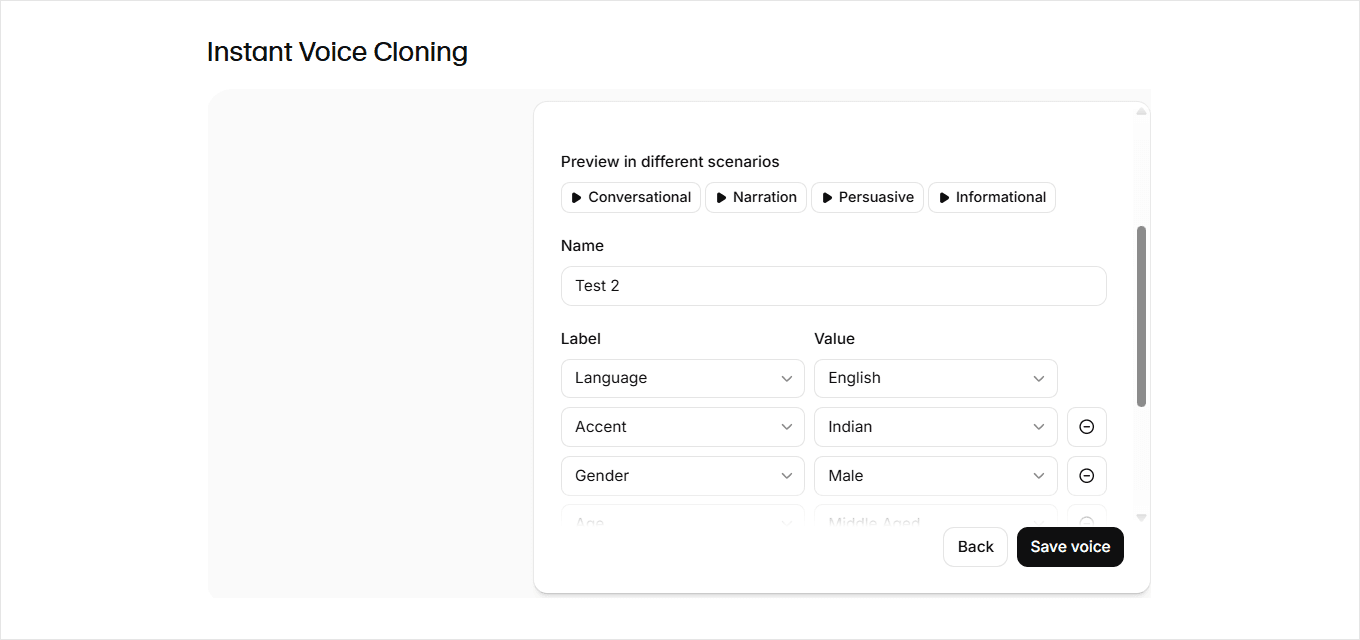
Give the voice a name you'll recognise; you'll use it again in step 11. Set its labels: language, accent, gender and age. Use the Preview buttons to hear your clone in a few styles. Confirm you have the right and consent to clone the voice, then click Save voice.
Step 6: Verify your voice
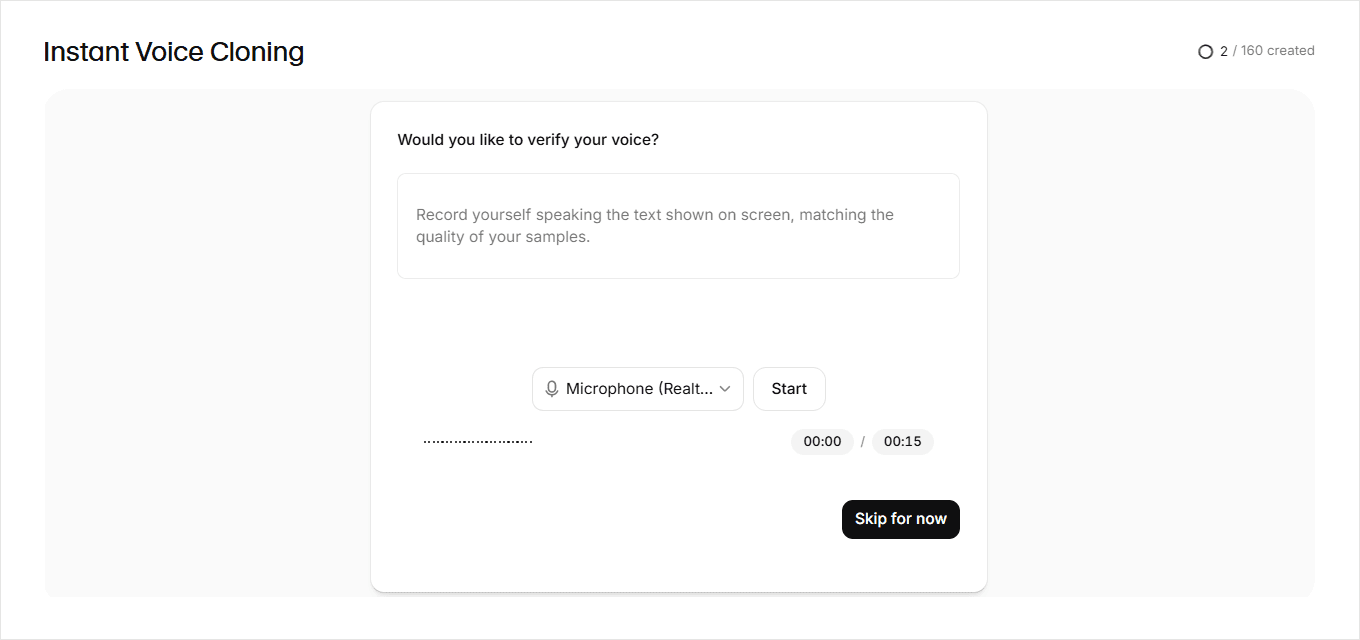
ElevenLabs then asks whether you'd like to verify the voice. Click Start and read the line shown on screen, up to 15 seconds, in the same voice and the same room as before. Verifying proves the voice is yours.
You can click Skip for now and verify later; the voice works either way.
Step 7: Your voice is ready
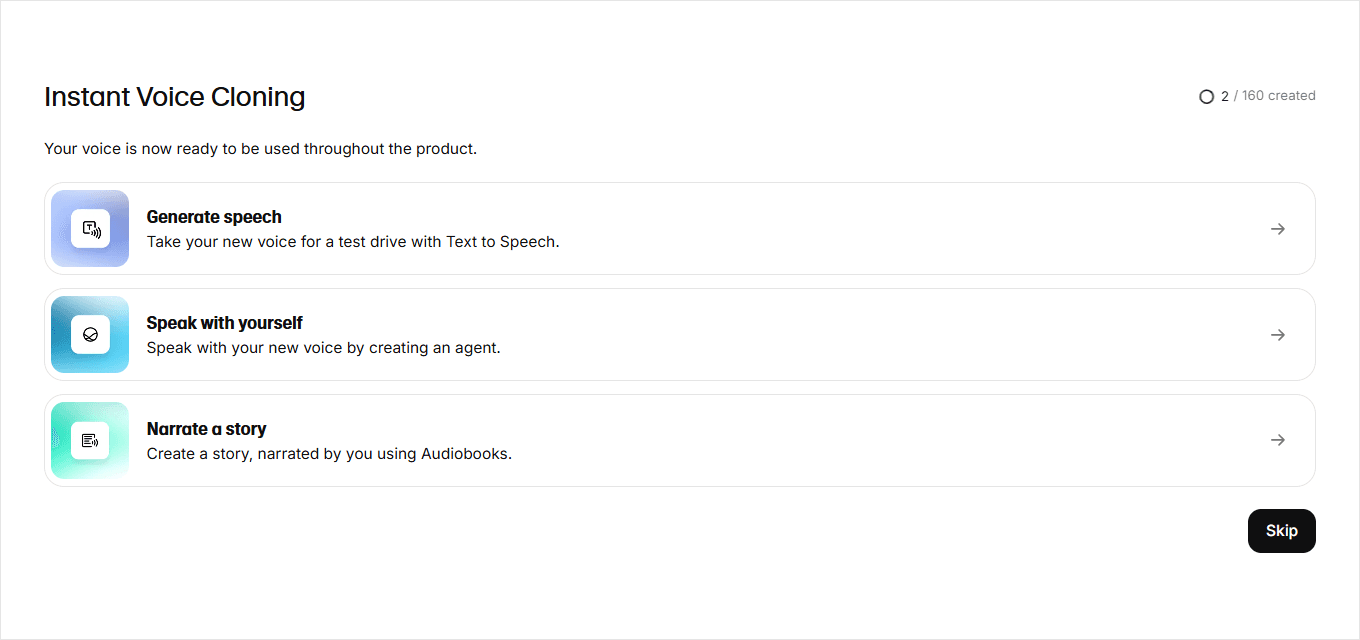
You'll see "Your voice is now ready to be used throughout the product." Click Generate speech to try it out.
Step 8: Test it in Text to Speech
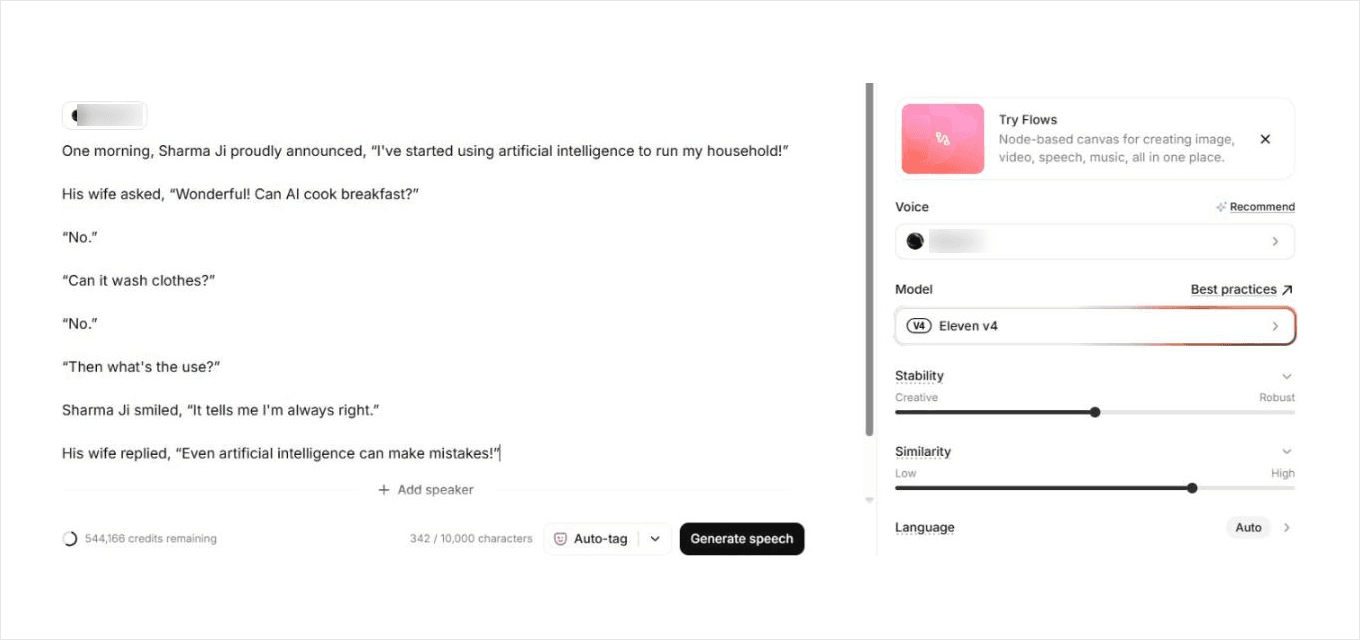
You land in Text to Speech. Under Voice, check that your new voice is selected; if not, choose it. Under Model, choose the latest model. Today that is Eleven v4. Paste in this sample, click Generate speech and listen:
One morning, Sharma Ji proudly announced, "I've started using artificial intelligence to run my household!"
His wife asked, "Wonderful! Can AI cook breakfast?"
"No."
"Can it wash clothes?"
"No."
"Then what's the use?"
Sharma Ji smiled, "It tells me I'm always right."
His wife replied, "Even artificial intelligence can make mistakes!"
If it doesn't sound like you, go back and record again: longer, closer to the mic, in a quieter room. A better recording does more than any setting.
Part two: create your persona and make it talk
Step 9: Ask for an AI persona of you
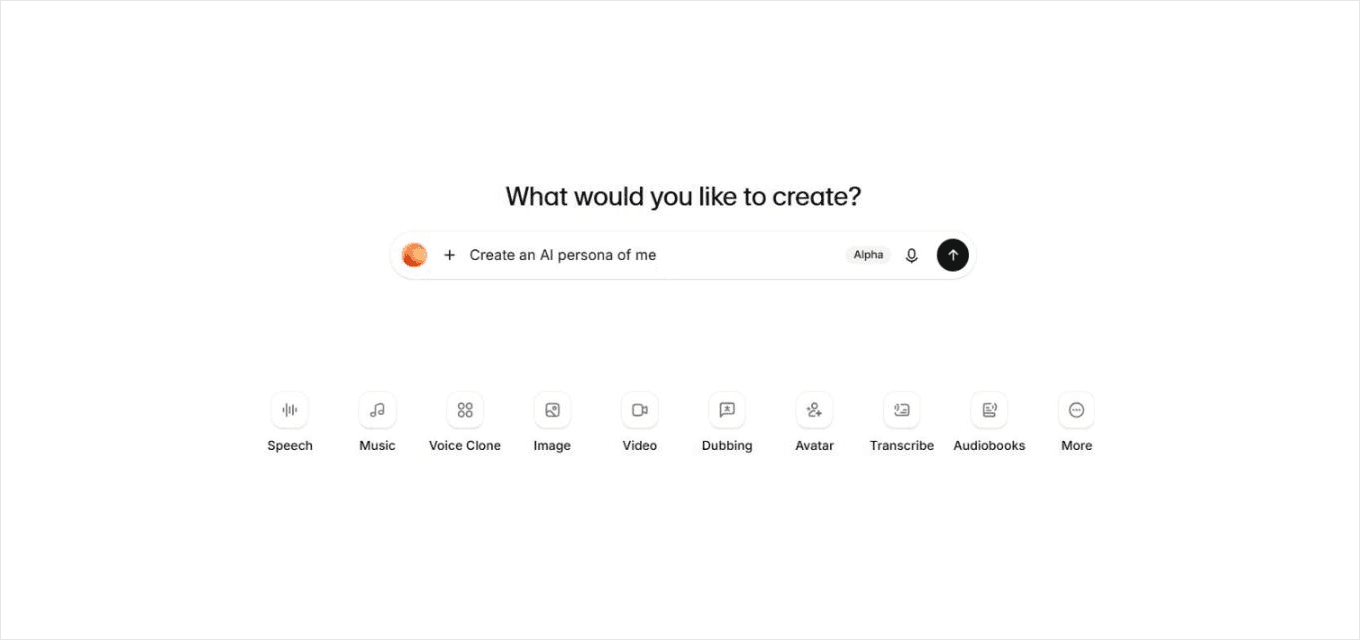
Go to https://elevenlabs.io/app/home. In the box under "What would you like to create?", type:
Create an AI persona of me
and press Enter. ElevenLabs asks for a clear photo of your face, front-facing and in good light. Click the + in the message box and upload the photograph you prepared.
Step 10: Choose your best persona
ElevenLabs makes two options. Each is a reference sheet of you: a front portrait, a three-quarter view, a side profile and a full-length pose. Pick the one that looks most like you and tell it which image to use, for example:
Use the first image in option 2
It turns that view into a single front-facing portrait, which is your persona.
Step 11: Have it read a script in your voice
Now ask it to read something in the voice you cloned in part one. Use the name you gave the voice in step 5:
Use the [your voice name] voice to read this:
Verma Ji proudly told his wife, "I've installed AI to manage all our household expenses!"
His wife asked, "Wonderful! What did it suggest?"
"It said we should stop unnecessary spending."
"So, what did you do?"
"I cancelled your shopping budget!"
"And then?"
"Then AI advised me to book a hotel until things cool down."
It produces the voiceover, about 20 seconds. It may add delivery tags such as [proudly] or [laughs] to make it livelier. Play it, and ask it to remove them if you prefer a plain reading.
Step 12: Generate the video with your persona
Finally, ask:
Generate the video with the persona
ElevenLabs lip-syncs your persona's portrait to the voiceover. When it finishes, you have a short video of you, telling the Verma Ji joke, in your own voice. Download it from the chat.
Watch it before you share it. ElevenLabs says plainly that it hasn't checked the lip-sync or the likeness, so that check is yours. If something is off, ask in the same chat for a different framing, outfit or background.
What it costs
Cloning your voice and testing it in Text to Speech uses very few credits. The persona and the video use far more: the chat we used to test this guide used about 22,000 credits for the two persona options, the portrait, the voiceover and a 22-second video. Expect to need a paid plan for part two, and check elevenlabs.io/pricing for current plans and which of them include Instant Voice Clone before you start.
Where business owners use it
- A welcome video for your website or WhatsApp, updated in minutes when an offer changes.
- Event and festival greetings to customers, without a shoot.
- Training and onboarding clips for new staff, in your voice, in more than one language.
One rule: tell people when a video is AI-generated. A persona earns trust when it is used openly, and loses it fast when it isn't.
We build AI personas live, with owners, at our AI Business Breakfast: bring a 60-second recording of your voice and a couple of good photographs. See all our programmes.
Sources
The steps follow the live ElevenLabs app, checked on 31-Oct-2026 in a working account, with screenshots from that account.
- ElevenLabs Documentation, "Instant Voice Cloning." The cloning flow (record or upload, confirm voice details and consent, save) and the advice to record at least a minute of audio. https://elevenlabs.io/docs/eleven-creative/voices/voice-cloning/instant-voice-cloning
- ElevenLabs, pricing. Current plans, credit allowances and which plans include voice cloning. https://elevenlabs.io/pricing
Note: ElevenLabs updates its app often, and features roll out gradually, so your screens may look slightly different. The Home chat is marked Alpha. Accurate as of 31-Oct-2026.
Related articles
Put this to work in your own business
We train 325+ owners across Delhi NCR hands-on, on their own data — in 2 days.